

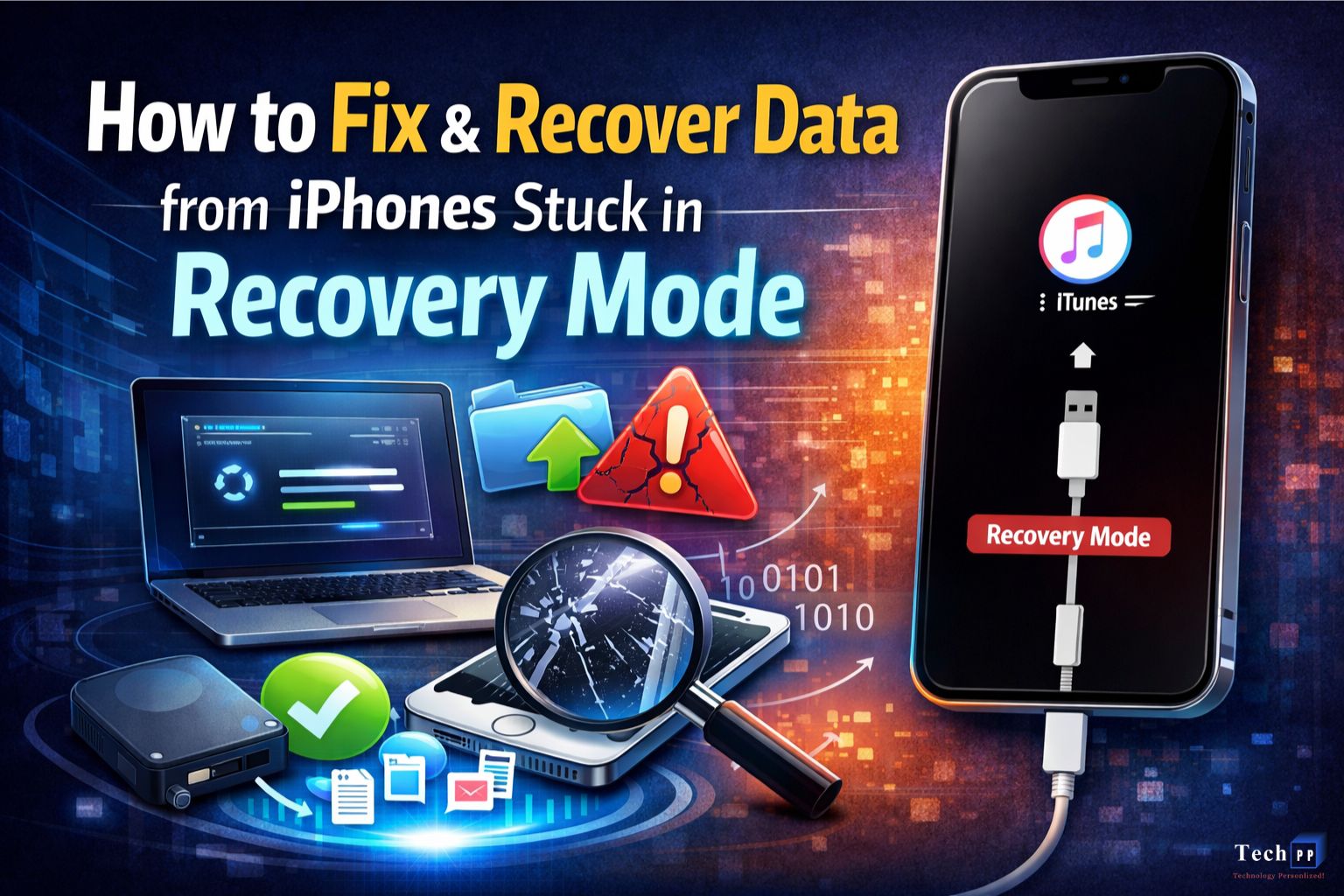
Recover Data! Imagine grabbing your iPhone to snap a photo and seeing only an iTunes logo and a cable icon on-screen… that’s recovery mode. It’s a nerve-wracking sight, especially since over 1.5 billion people worldwide use iPhones. We all store precious photos, messages, and apps on these devices, so having it stuck can feel like a personal data disaster. The good news is that most iPhones stuck in recovery mode can be fixed with the right steps… no special gadgets or jailbreaking required. Below we’ll explain why your iPhone might get stuck in recovery mode and walk through several Apple-approved methods to fix it. And if your photos or files happen to be missing or corrupt after the fix, we’ll show you how a top-notch data recovery tool (the best iPhone data recovery tool) can pull them back.
Causes for
Recovery mode usually isn’t random, it’s the iPhone’s way of saying “something went wrong.” Common triggers include:
- Interrupted iOS update or restore: For example, let’s just say that the phone loses its power or crashes or iTunes just fails during an update, that system inside can become corrupted.
- Software glitches or corruption: Those major iOS bugs or corrupted system files can force your iPhone into recovery mode to make things safe.
- Faulty cable or port: That one bad Lightning cable or USB port can just disrupt the update/restore process real easy and trigger problems like this one. Likewise, a button that is stuck or a dirty charging port clogged with lint can make the boot sequence stop working.
- Physical damage or recent repair: If you recently dropped that iPhone or had it repaired by someone, an internal connector like the battery or port might have loosened in the process. Hardware issues like these make the iPhone jump into recovery mode to protect your device.
- Other causes: (Rarely) things like unfinished beta installs or malware could corrupt iOS, but those usually involve modified devices. Here we assume your iPhone is running stock iOS.
Understanding the cause can guide you, but in most cases the steps below will help regardless of how you got stuck.
Methods to Fix Recovery Mode Problems in iPhone
Force Restart Your iPhone
First, try a hard reboot. This “hard restart” often clears small software hiccups without erasing any data. Simply perform the force-reboot sequence for your model:
- iPhone 8 and later: Press and quickly release Volume Up, then Volume Down, then press and hold the Side (Power) button until the Apple logo appears.
- iPhone 7 / 7 Plus: Press and hold Volume Down and the Side button together. Release both when you see the Apple logo.
- iPhone 6s and earlier: Press and hold the Home button and Power button at the same time. Release when the Apple logo appears.
After the screen flashes off and back on, your iPhone should reboot normally. This forced restart does not erase your data and is “fast, free, safe” for minor glitches. If this worked, your iPhone should boot to the home screen and skip recovery mode.
Use iTunes/Finder to Update or Restore
If the ipPhone is still stuck out there, connect it to a computer. On Windows or if you have an older Mac lying around, open that iTunes app and on macOS Catalina and later just open Finder. With the iPhone attached via USB, the computer will be detecting it in recovery mode and display an option to Update or Restore.
- Step 1: Open iTunes/Finder and connect that iPhone of yours to your computer.
- Step 2: When you are prompted, just choose Update. This tells iTunes/Finder to reinstall that iOS software without erasing your data.
- Step 3: If that update fails or the phone just remains stuck, repeat that process and choose the option Restore. This erases the iPhone and installs fresh iOS.
Note: Restore will wipe all data so use it only if Update just won’t work.
Choosing Update first is recommended since it can definitely fix iOS without deleting those files. In those worst caseworst-case scenarios, a full restore will reset the phone… but you know it breaks the recovery-mode loop surely.
Enter DFU Mode and Restore
If even iTunes/Finder doesn’t fix it, the next step is DFU mode (Device Firmware Update). DFU is a deeper restore that reloads the firmware itself. You use this only as a last resort cause it will just erase all your data.
- Step 1: Connect the iPhone to your computer.
- Step 2: Enter DFU using model-specific buttons:
- iPhone 8 and later: Just press Volume Up then Volume Down and you will have to then hold the Side button until the screen goes black. Now while you are holding those buttons… also hold Volume Down for 5 seconds. Release the Side button but keep holding Volume Down until iTunes/Finder recognizes the device. It may say “iPhone in recovery mode”, remember that.
- iPhone 7 / 7 Plus: Press and hold those Side + Volume Down buttons together for near about 10 seconds. Then release that Side button but keep holding Volume Down until you see the computer detecting your iPhone.
- iPhone 6s and earlier: Press and hold Home + Power for about 10 secs. Release that Power button but continue holding Home until the computer detects that iPhone of yours.
- Step 3: Once you are there in DFU mode, your screen will stay black but iTunes/Finder will prompt to Restore the iPhone. Click Restore to reinstall iOS and firmware.
If your phone boots but some content is missing or damaged, specialized software can help. For example,Let’s assume, the photos sometimes getmight sometimes become corrupted (pixelated or incomplete) because of y a failed update or empty restore. In that case, a reliableWhat will you do in that case?
If I were you, I would have relied on an iPhone data recovery tool can come for to the rescue. These programs softwares deep-scan your device or your iTunes/iCloud backup and pull back lost files. In fact, In fact, certain free iPhone data recovery tools help you recover a small batch of files for zero cost.
Stellar’s iPhone data recovery software from the house of Stellar (as one example) can is one of those, it claims to “recover lost and deleted or iPhone files. The last time I tried this – it was free to download, allowed free scan, had a preview feature for files, and free recovery of 10 photo and video files, which was pretty okay for me to test the capabilities of this tool.
This particular tool had an option to recover deleted photos, videos iPhone, messages, attachments, contacts, call history. , and more from iPhoneIn general data recovery software’s for iPhones are able to recover files from , iTunes & iCloud backup files with ease.”. It handles scenarios like accidental deletion, or factory reset, orfiles lost due to app malfunction, or failed iOS updates., and can retrieve your Camera Roll pictures, photo stream images, and more. Even if the phone was in recovery mode or saw a “support.apple.com/iphone/restore” screen, a top recovery tool can often extract and restore your precious memories. In short, if you see pixelated or missing pictures after trying the above fixes, give the best iPhone data recovery tool a try… it’s often surprisingly effective at getting files back.
ALSO READ : ITTechBasics: Simple Guide to Modern Tech
Conclusion
I’ll tell you one thing very clearly, the iPhone stuck in recovery mode problem won’t be fixed in a minute or an hour, but patience pays off. You have to patiently approach each and every step, if you are lucky enough one or the other methods to fix it might work in your favour.
It’s okay, software errors or some things are not always under our control, but what’s in our control is to handle our device properly, never install mysterious apps, suspicious files or programs that can harm your device and above all of it create regular back up of our iPhone device. So, even if any data is mysteriously lost in case of a software error, you can restore the files.
Getting an iPhone out of recovery mode usually just takes patience and the right steps. Each method that we explode increases in intensity (and risk of data loss), so proceed in order. Always remember to back up your iPhone before attempting recovery after all, even Apple notes that entering recovery mode to fix the phone “will erase all data”if you restore it. With a good backup, you can restore your information once the phone is working again. And if any data is unexpectedly gone, that specialized recovery tool mentioned above can often retrieve lost photos, videos, messages, notes… essentially acting as a safety net.
Stay calm and work through the steps. Chances are your iPhone will boot up normally again soon. And if your photos vanished in the process, let the recovery software handle it so you don’t miss a single memory.