

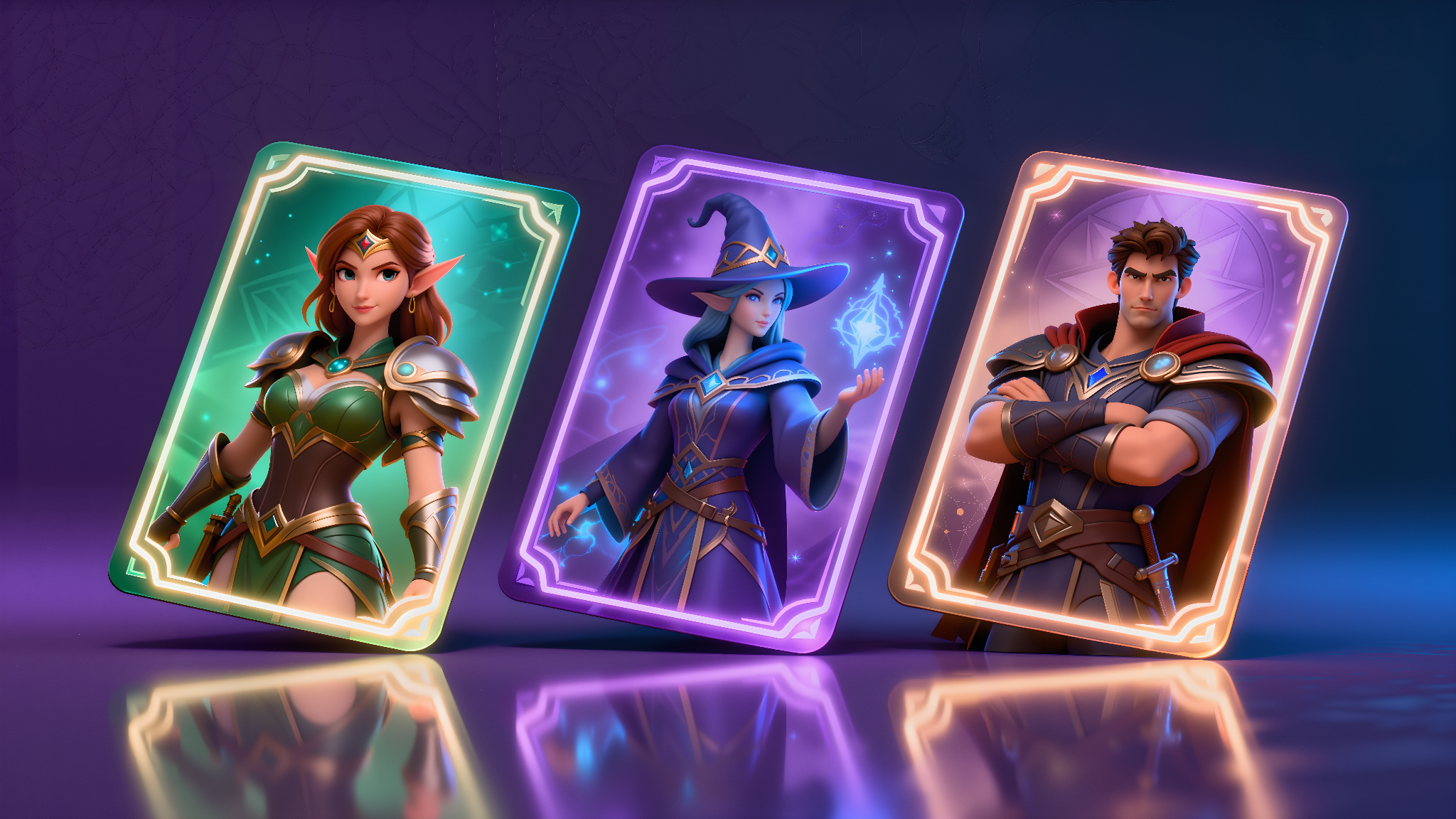
Scenario! If you already have a character image and want a polished ready to use card quickly, this guide will show you how. A strong character card captures identity in a clear way. It includes a name, a role, and a few defining traits. It presents your character consistently across games, portfolios, social posts, or pitch decks.
In a few simple steps, you can transform a single image into a complete character card. Start with your base image, shape the layout using Edit with Prompts, refine the visual details, and export a clean result that you can share or animate.
Set your foundation
Open Edit with Prompts from the Create menu.
Load an existing image from your Scenario Library or upload a new one.
Models such as Seedream 4, Gemini 2.5 (Nano Banana), GPT Image, Flux Kontext, and Runway Gen 4 help you move from idea to variation quickly. They maintain strong style consistency and character identity as you generate different versions.
What to include in your first prompt
Use the instruction field to describe the kind of card you want.
You can begin with something simple: Create digital card game artwork of this character.
This gives the model space to explore different layouts and visual approaches.
If you prefer more control, describe the card structure, where key elements should appear, and the overall theme: Create a fantasy character card with the character’s full body on the left and their attributes on the right. Include name, power level, and a short description. Style the card with a fantasy aesthetic and a clean readable layout.
Why this method works
One clear instruction defines the layout and the tone. You can then focus on refining details instead of rebuilding the design every time.
Once your base card looks right, start exploring quick variations. Restyle clothing, adjust colors, experiment with materials, or add small accessories. The pose and framing stay consistent while you develop new looks.
If you want a detailed visual example, watch our dedicated walkthrough on Edit with Prompts
Optional animation
After you are satisfied with the static card, you can bring it to life. In the image showcase interface, click Convert to Video.
Choose a model such as Veo 3, Kling 2.5, or Sora, describe the motion you would like to see, and generate your clip.
Frequently Asked Questions
Q1. How do I keep pose and layout consistent while I experiment with style
Lock the base composition in your first instruction. Then apply small changes such as recolors, outfit tweaks, material swaps, or accessories. These edits keep pose and framing intact while you explore variations.
Q2. Can I start from a sketch instead of a photo
Yes. Upload your sketch and use an instruction such as Render this sketch as a colored character card. Add style preferences if you want a specific theme. Prompt Spark can help you craft more detailed prompts.
Q3. How do I animate my character card
Open the image showcase view and click Convert to Video. Select a model such as Veo 3, Kling 2.5, or Sora. Describe the motion, then generate.
Conclusion
Turning a single image into a complete character card is easy. Begin with a clear layout instruction. Refine your card with focused edits such as outfit changes, color adjustments, and material swaps. When the card feels ready, export it or even animate it as a short motion piece.
Everything happens in one workspace. You can move from idea to a polished result without jumping between tools.
Start now. Open Edit with Prompts, load your base image, and create your first character card in just a few minutes.
If you are new to Edit with Prompts, you can find more information in our knowledge base.